Using a branded email address with Gmail (Updated)
⚠️ Warning (October 2026): this method stops working in January 2027. Google is removing Gmail’s “Send mail as” feature for third-party addresses — including custom domains like chris@ibeck.com — on the web and in the Gmail mobile apps, whichever SMTP server the address uses. Receiving mail forwarded by ImprovMX into Gmail is not affected; only sending as your branded address from Gmail is.
You just set up your new organization and you have your spiffy new web site. You look like a pro, now you need to communicate like a pro.
For this example, I’m using the ibeck.com domain to send email as chris@ibeck.com rather than my Gmail address.
It takes 2 things to pull that off:
- Create my branded chris@ibeck.com email addresses with improvmx.com
- Configure Gmail to use my newly branded email address.
Gmail account settings
- Go into Gmail and click on the Settings option.
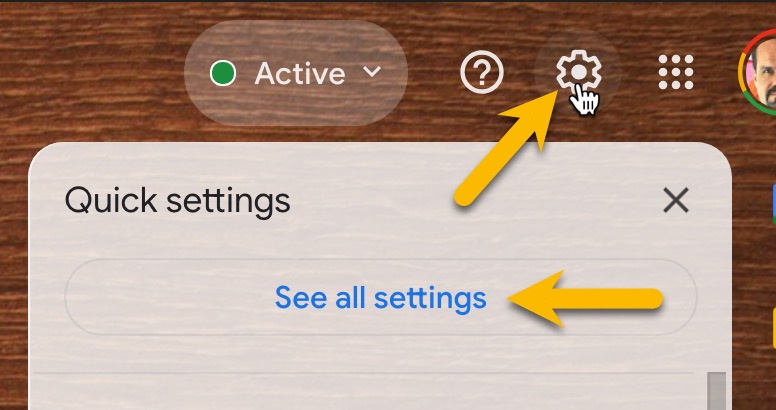
- Now click on the See All Settings option.
- You will see a navigation bar at the top of the page. Click on the Accounts and Import option:
- You will get a screen like this:
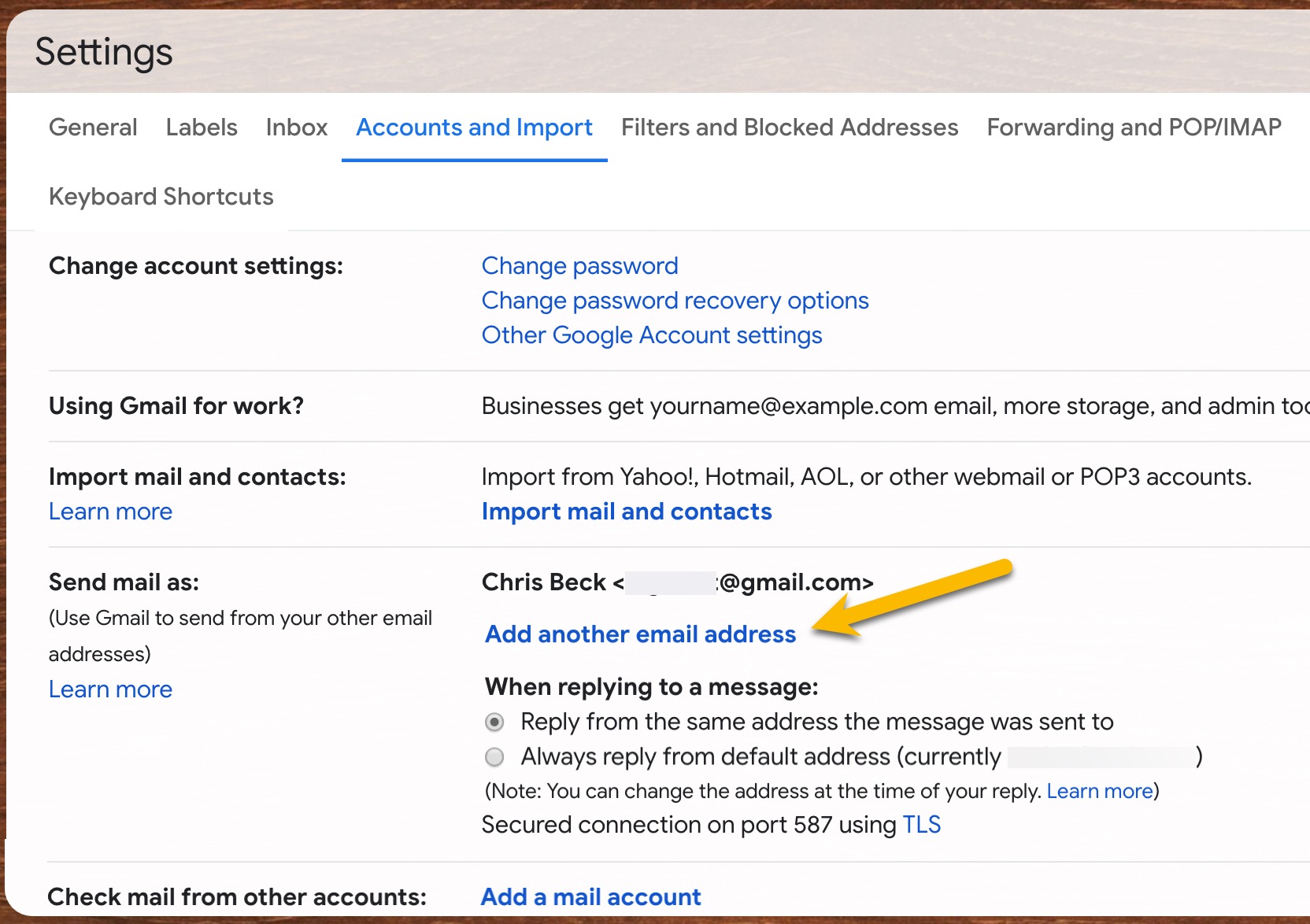
- Now click on the Add another email address link:
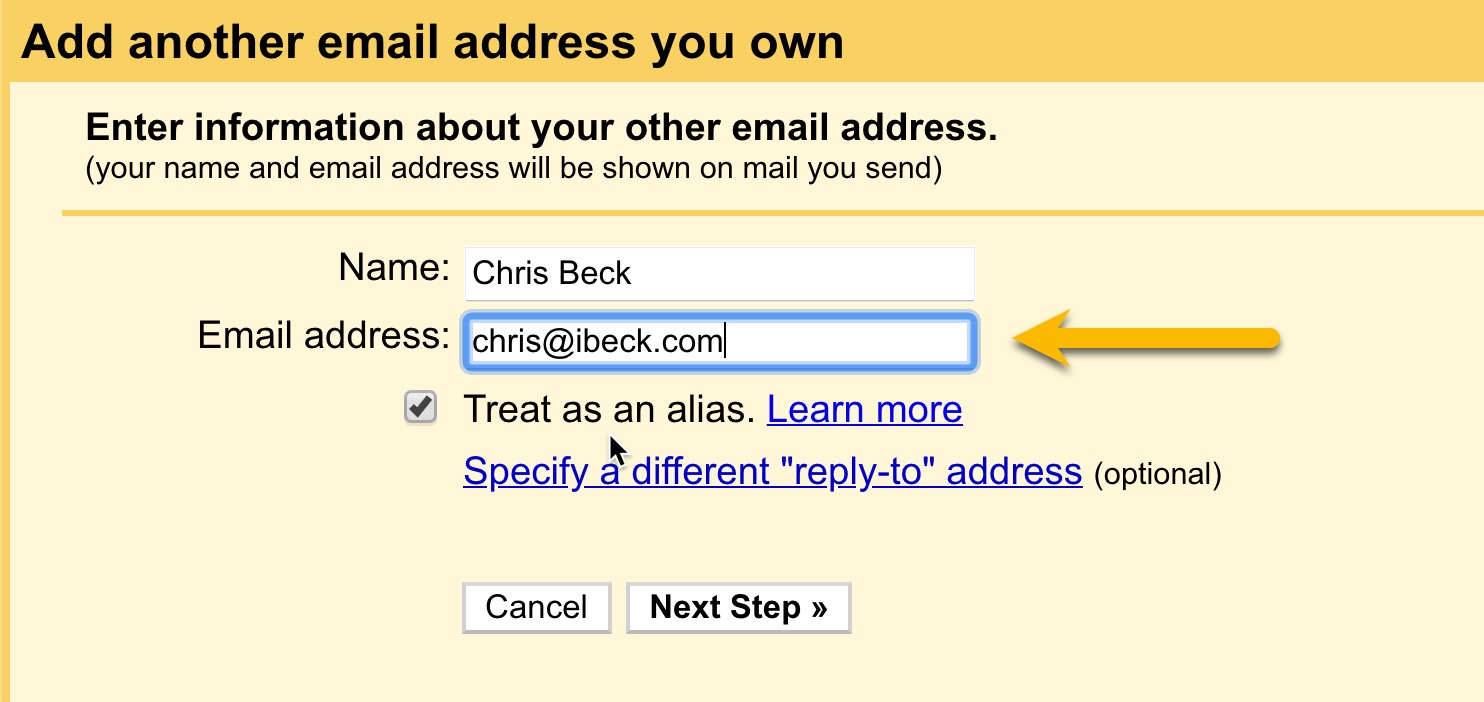
- Enter your Name and Email Address
- Ensure that Treat as Alias is checked
- Click on Next Step
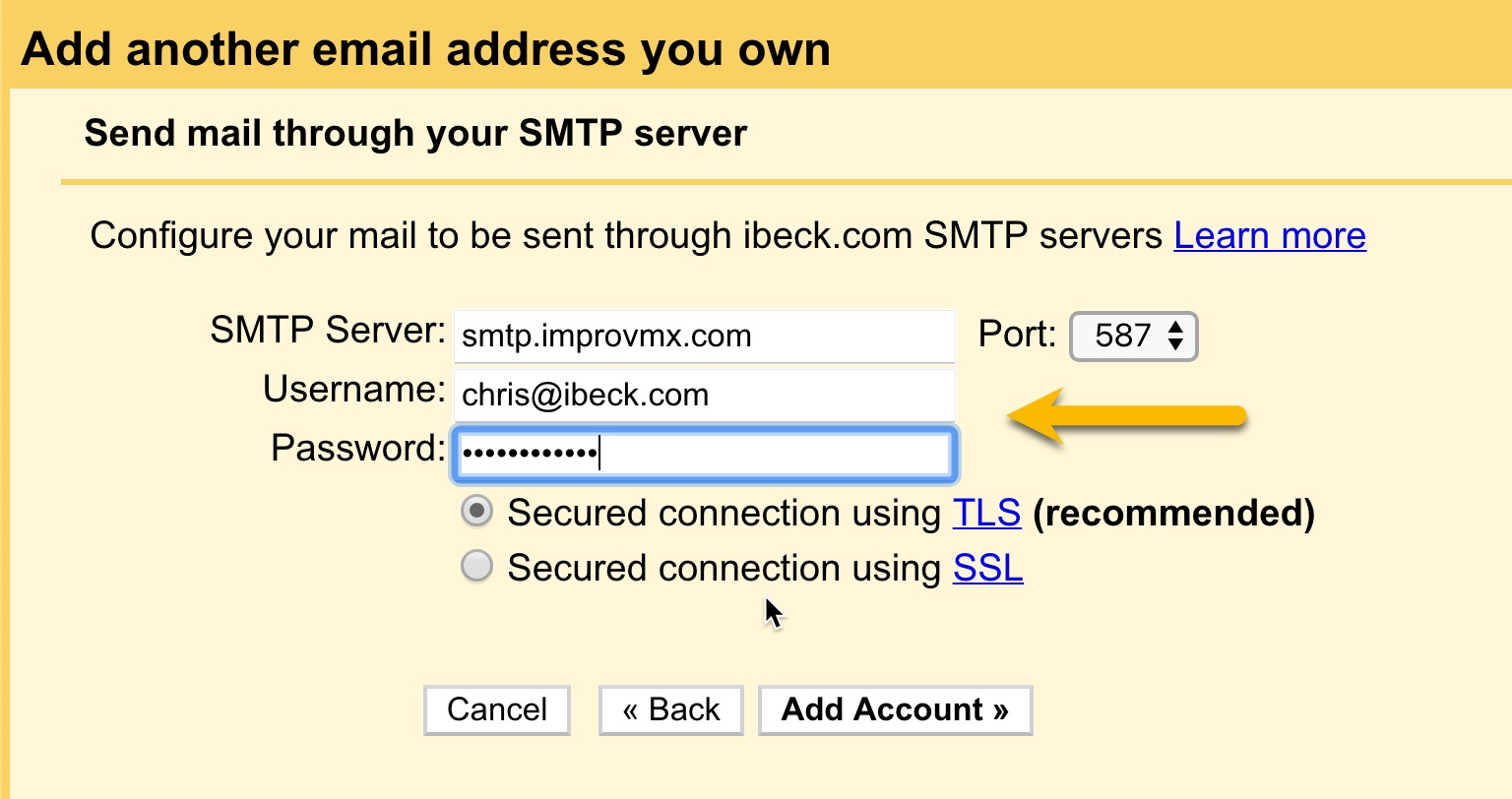
- Add smtp.improvmx.com as your SMTP Server on port 587
- Enter your full branded address as the Username — e.g. chris@ibeck.com (ImprovMX)
- Enter the Password that I’ve provided you in a DM
- Use Secure connection using TLS
- Click on Add Account
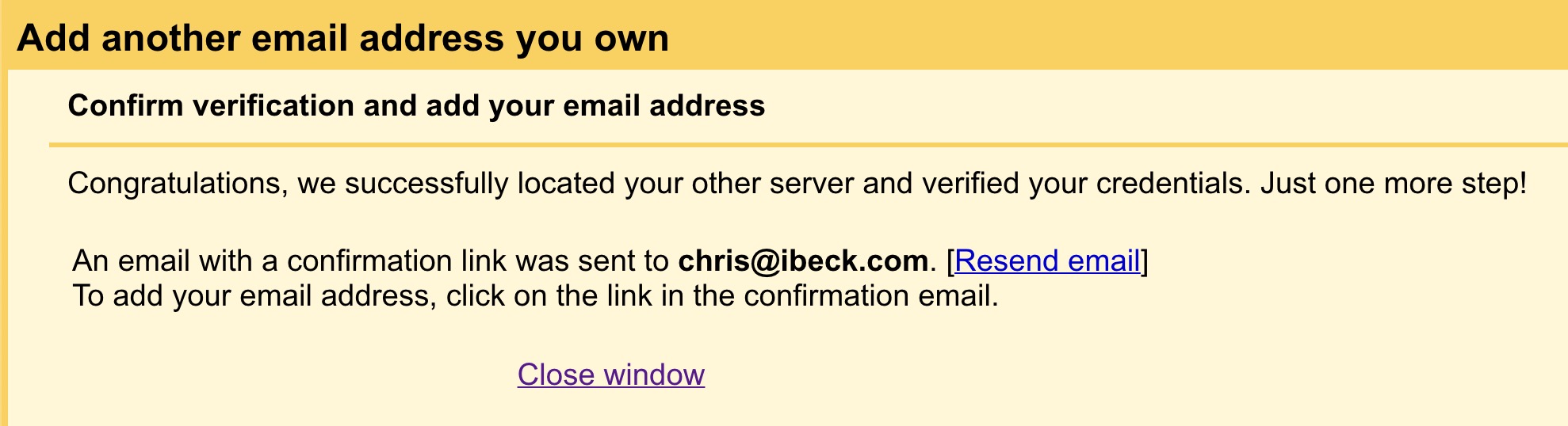
- Click on Close Window
- Now go to your Gmail Inbox and look for confirmation email like this:
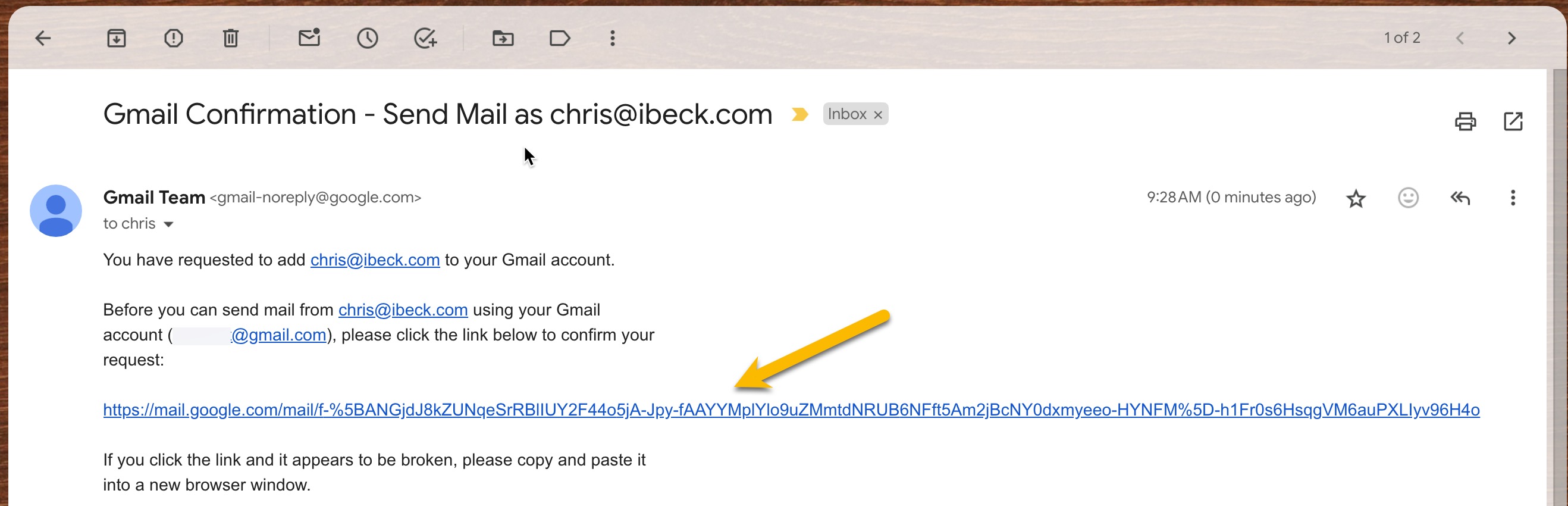
- Click on the Confirmation Link
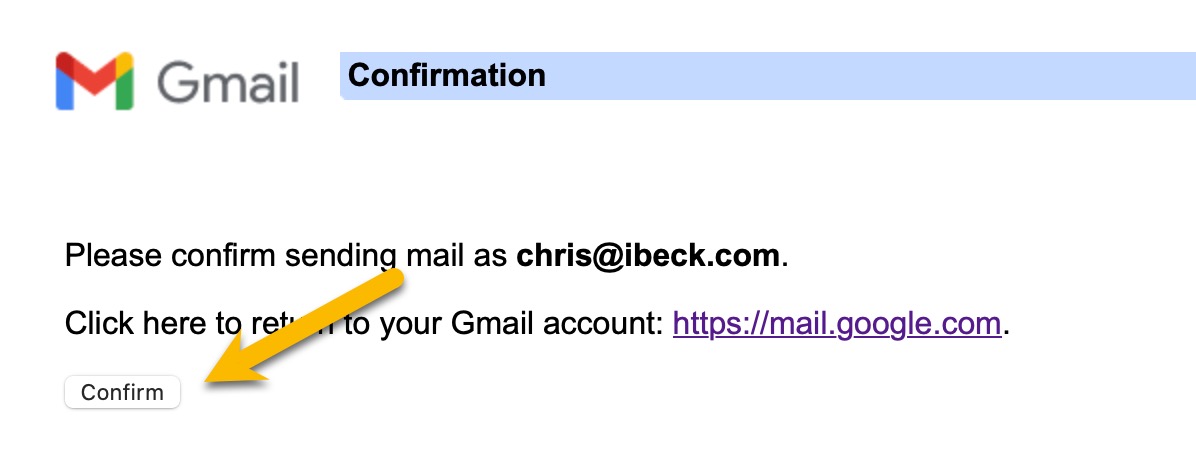
- Then click on the Confirm button
- Your settings should look like this
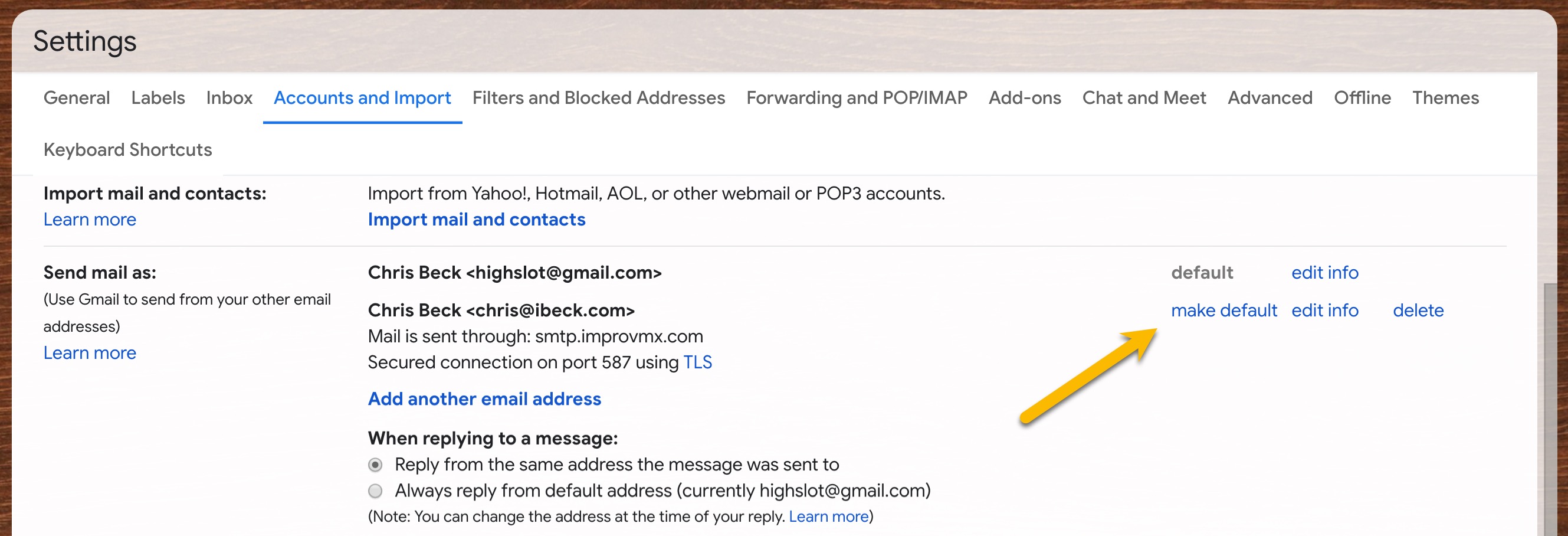
- Click Make Default to make your new email your default